Documentation Index
Fetch the complete documentation index at: https://simplex.sh/docs/llms.txt
Use this file to discover all available pages before exploring further.
Many web portals that host complex forms — insurance carrier portals, healthcare systems, government sites — require two-factor authentication. Simplex handles 2FA automatically so your workflows can log in and fill forms without manual intervention.
Adding 2FA to your workflow
Simplex offers three ways to authenticated with 2FA: Seed, Email, and Text.
In the Settings page, you can click + Add Config in the Two-Factor Authentication section.
Seed
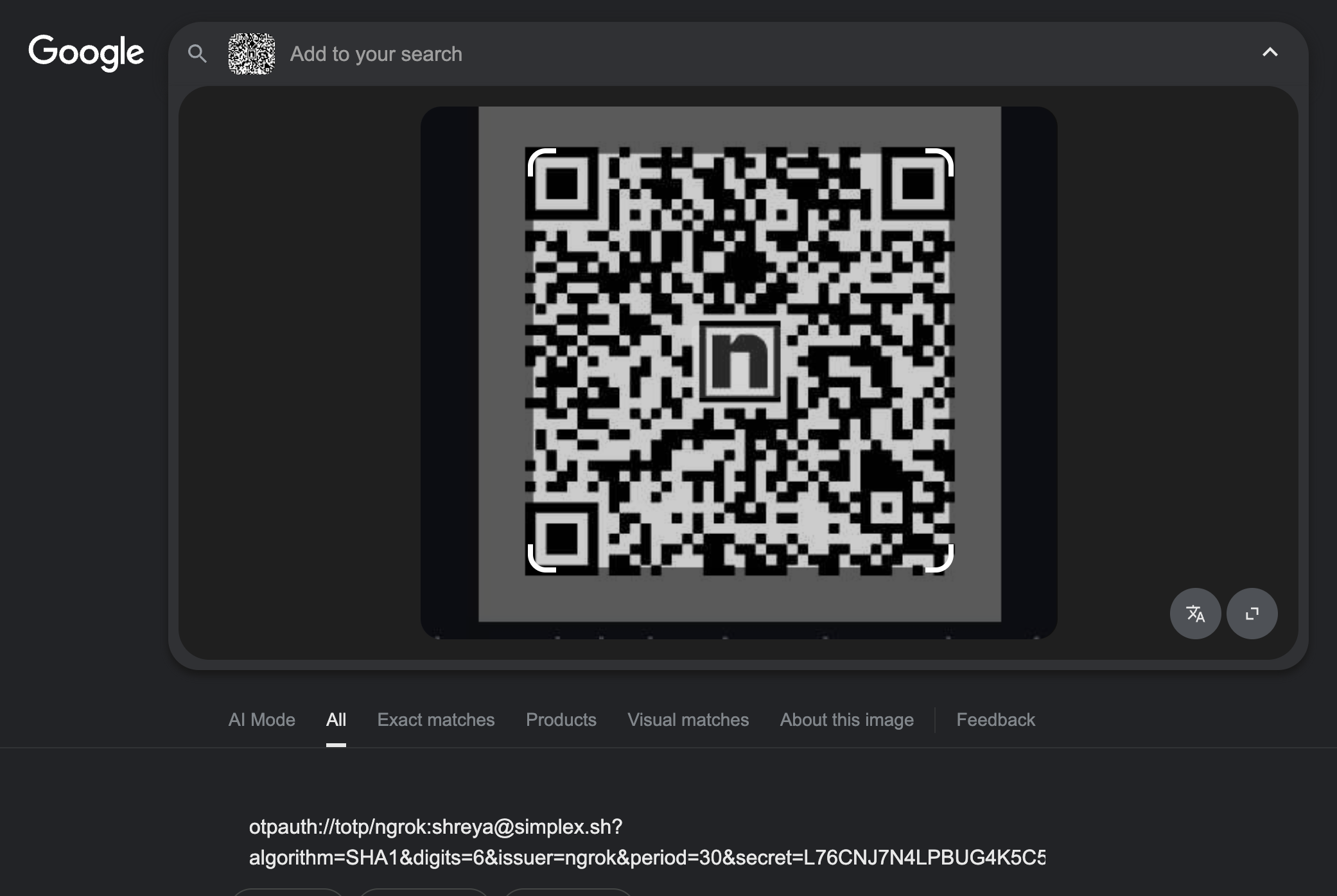
You can get this 2FA code from the QR codes that you would put in a Google Auth or Duo app.
You should take a screenshot of the QR code, then put it into Google images. You’re looking for the “seed” or “secret” parameter (example below).
Email
We can integrate directly with your existing PCI compliant data store to pull email and password tokens, and decrypt them on our containers through a custom microservice.
Contact us on Slack if you need this.
Text
We can spin up Twilio phone numbers for you that we pull 2FA codes from.
Contact us on Slack if you need this.
Adding 2FA configs via the API
You can also add 2FA seed configurations programmatically:
from simplex import SimplexClient

client = SimplexClient(api_key="your_api_key")

result = client.add_2fa_config(
    seed="JBSWY3DPEHPK3PXP",
    name="GitHub",
    partial_url="github.com"
)

print(f"Total configs: {result['total_configs']}")
Integrating 2FA configs into your agent
For all of three methods above (Seed/Email/Text), the Simplex agent in the Editor will have access to all the 2FA configs you’ve created, and will select a 2FA code to use programmatically, so when you run the workflow in production, the workflow will programmatically select the correct 2FA config.